WordPress Plugin
Overview
The WooCommerce Payment Gateway plugin offers a seamless solution for online store owners to accept payments via Visa and MasterCard directly on their WordPress-powered websites. With this plugin, store owners can easily integrate a secure and reliable payment processing system that supports two of the most popular global credit card networks. The plugin is designed to streamline the checkout process, enhance user experience, and ensure that payments are processed quickly and securely, helping businesses grow their online presence with minimal hassle.
Features
-
Support Visa & Mastercard: Accept payments from customers using Visa and MasterCard credit cards, ensuring convenience for a wide range of customers.
-
Secure Payment Processing: Built with top-level encryption and security protocols, ensuring that every transaction is protected and safe from fraud.
-
Easy Integration: Simple 3 setup process that requires minimal configuration to integrate with your existing WooCommerce store.
-
Real-time Payment Notifications: Receive instant updates and notifications for each successful or failed payment, allowing for better transaction management.
-
Transaction History: View and manage payment history directly within the WordPress admin dashboard, providing easy access to payment records.
-
Responsive Design: Fully optimized for mobile, ensuring customers can make payments seamlessly on any device.
Step 1: Request Plugin Files
To acquire the file of the QiCard Payment Gateway WordPress Plugin (Woocommerce Plugin), An email needs to be send to the Payment Gateway Support Team.
Installation Prerequisites
After successfully acquiring the files of the WordPress Plugin, you should receive a .ZIP file that contains the following two files:
-
The WordPress Woocommerce Plugin file: should look like this:
qicard-payment-woocommerce-plugin.zip -
Public Key PEM file: this file is the public key for the payment gateway, you will need it in the settings configuration step.
Step 2: Installation
-
Login to your WordPress Admin Dashboard
-
From the Dashboard Sidebar navigate to Plugins > Add New Plugin:
-
Click on Upload Plugin button
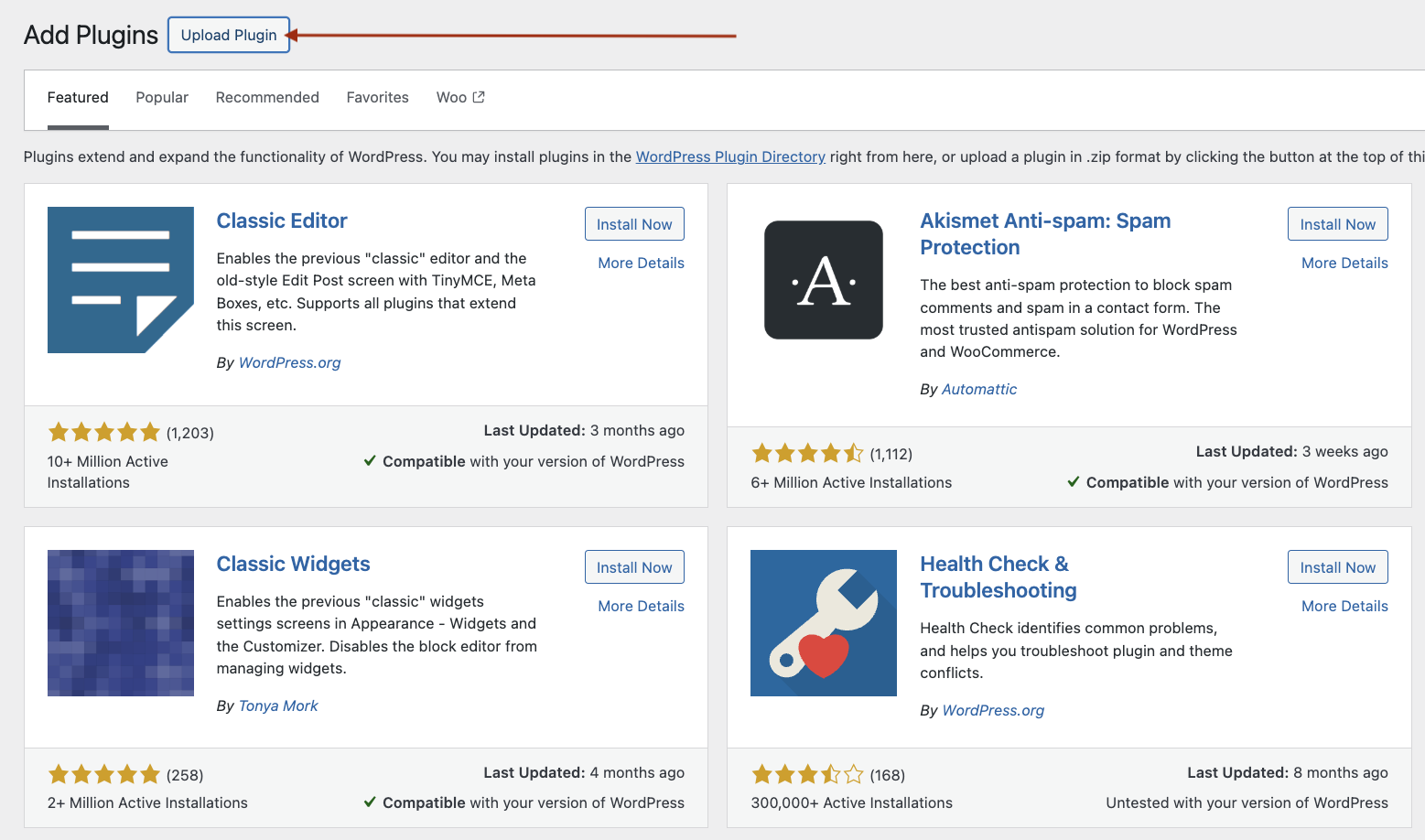
- Upload the plugin file
qicard-payment-woocommerce-plugin.zipand click on Install Now
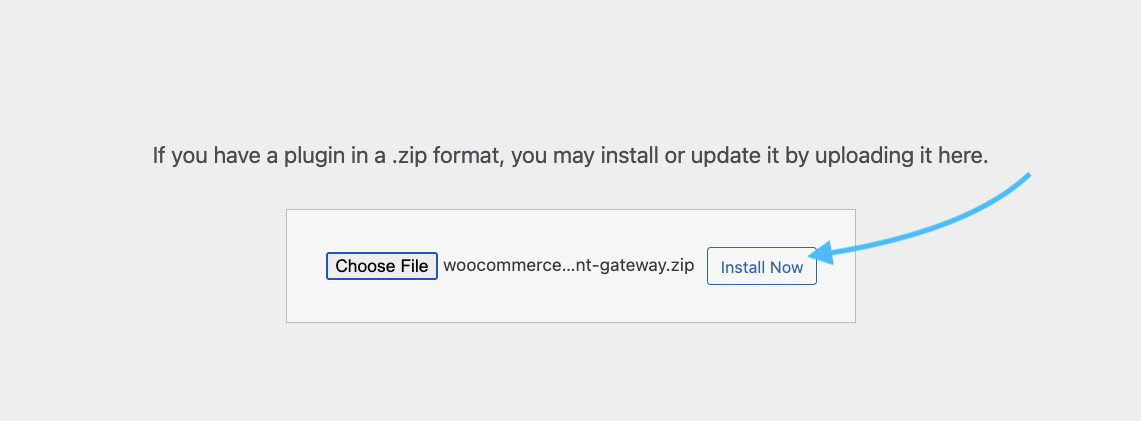
- The plugin will start the installation proccess and once the installation is done, click on Activiate Plugin button to Activiate it.
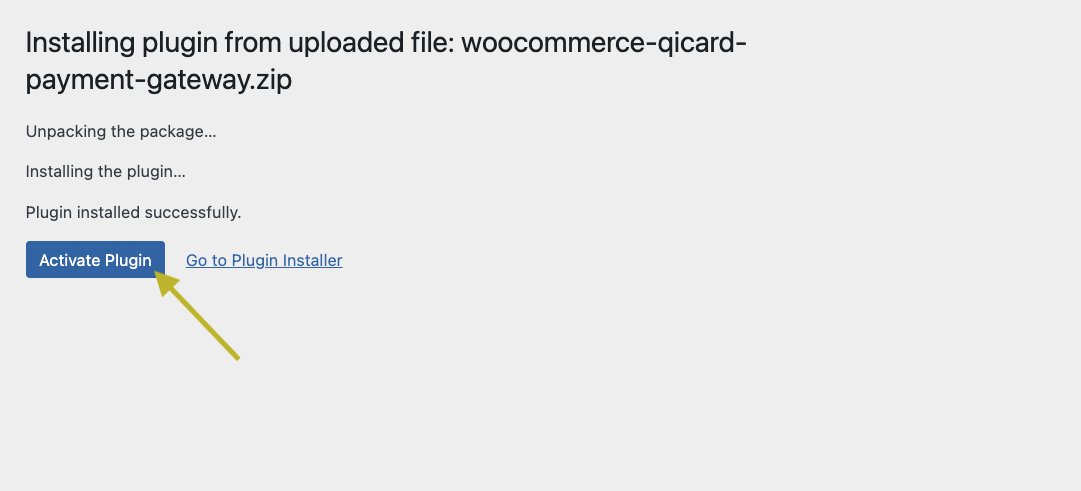
- And that's it, you've installed the Payment Gateway plugin successfully!
Step 3: Configuration
to configure the payment gateway plugin to function properly you need to do the following steps:
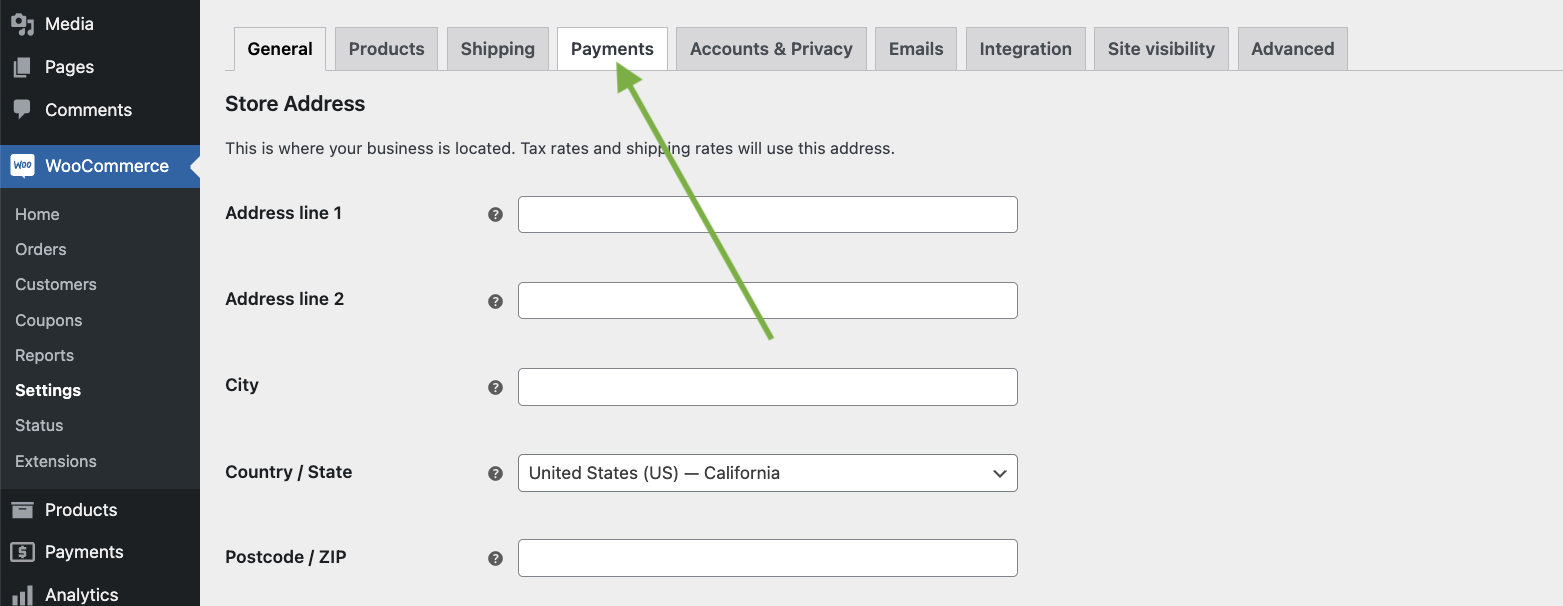
- From the Sdiebar, navigate to Woocommerce > Settings
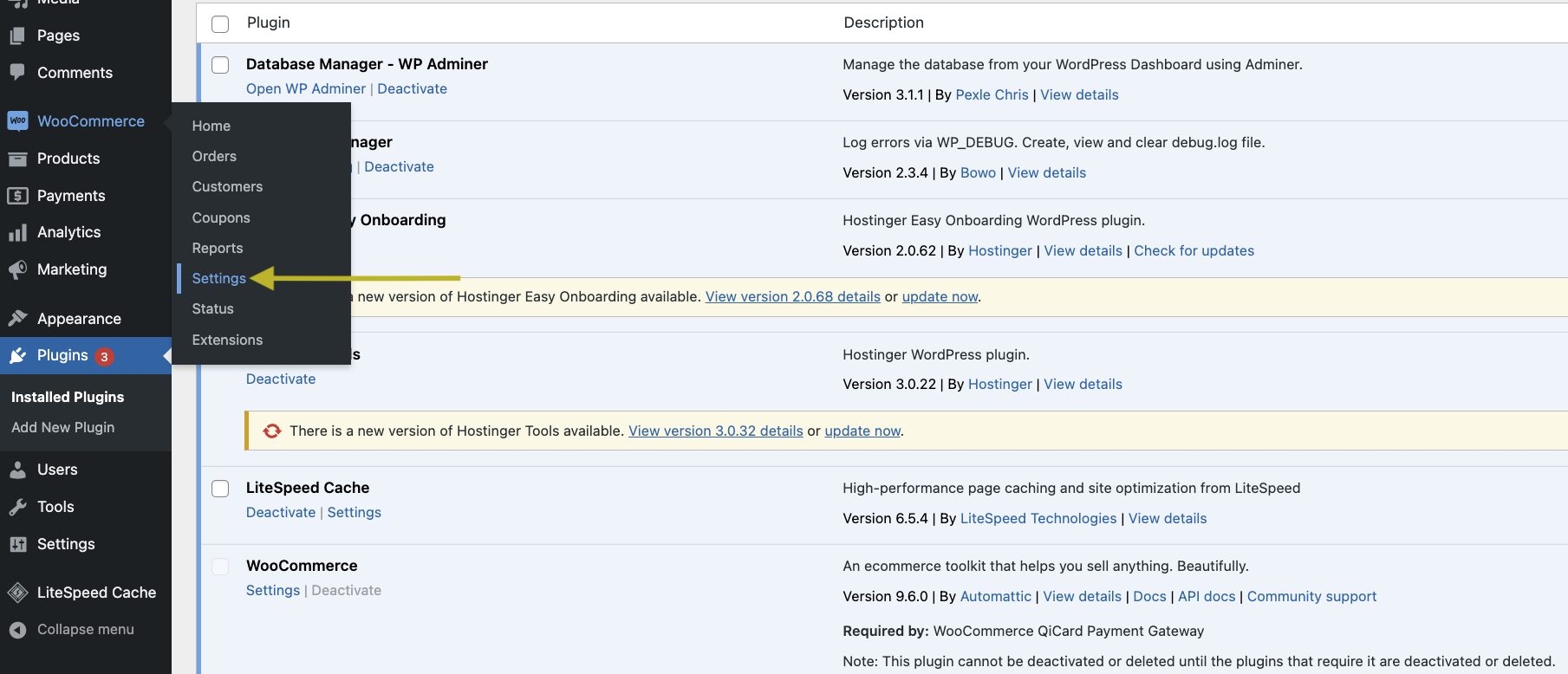
- A new page will appear, In this page navigate to Payments tab.
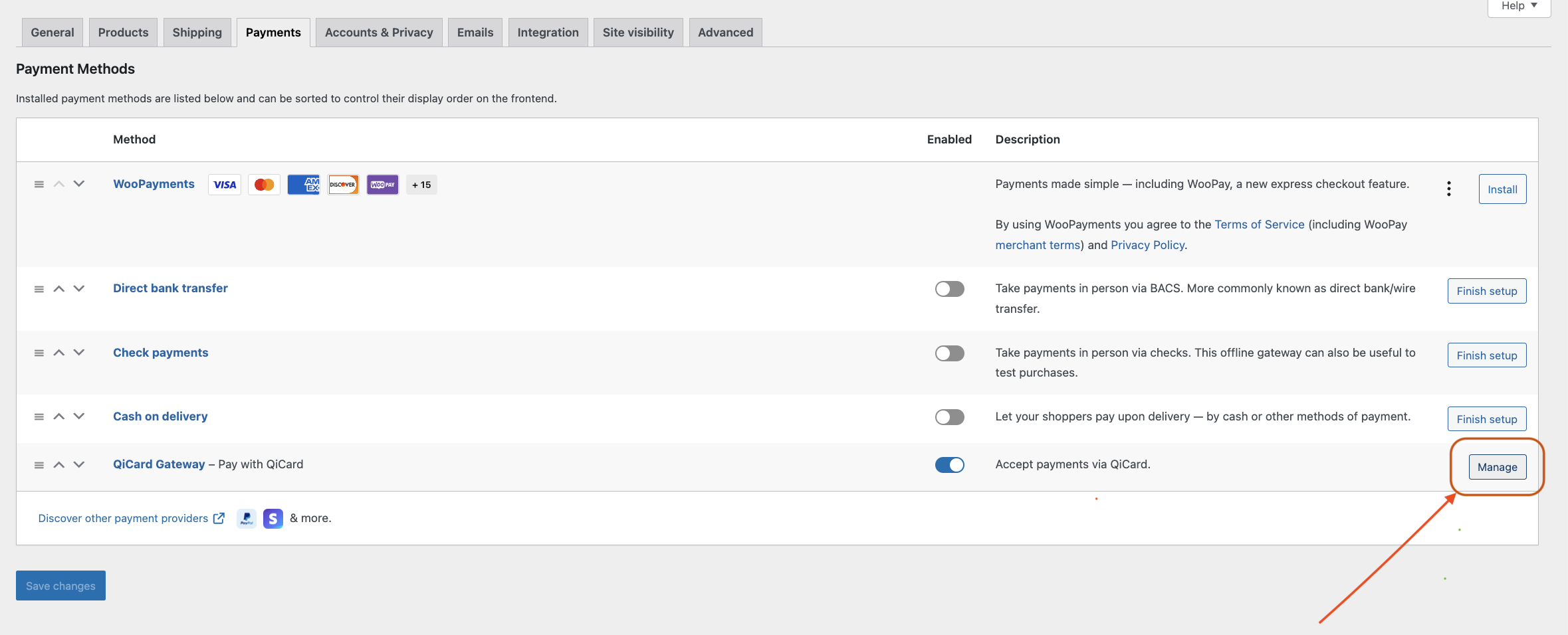
- A list of available payment methods will appear to you, scroll down to the new installed payment method (QiCard Payment Gateway) make sure to enable it first then click on Manage button.
-
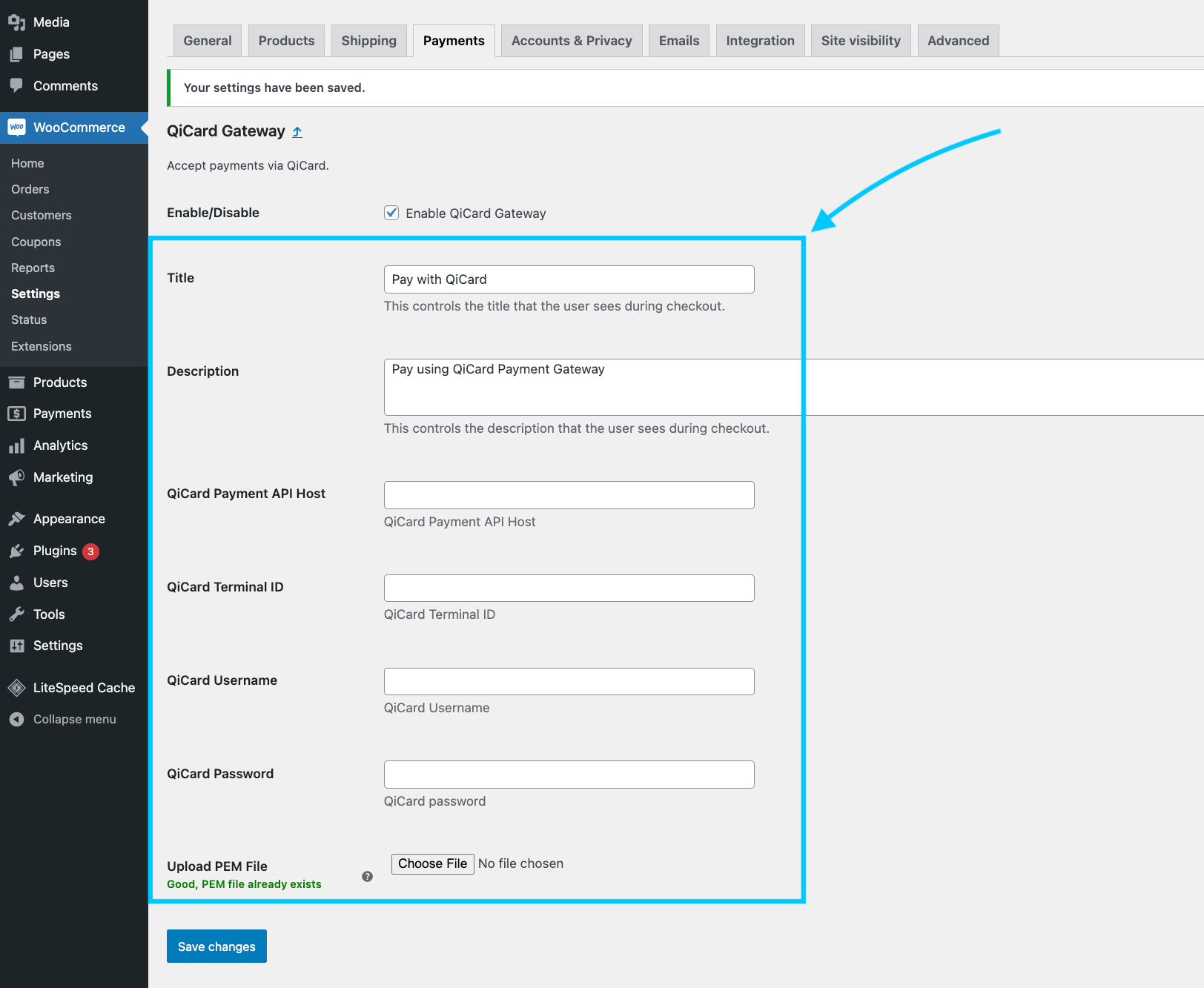
Here is this page, you will find the following fields that you have to fill in order for the plugin to work properly:
-
Title a title will appear for the end-users (customers).
-
Description a description for the payment method, it will appear for the end-users (customers).
-
QiCard Payment API Host the API host link to connect with the Payment Gateway server.
-
QiCard Terminal ID merchant terminal ID (acquired from the payment gateway support).
-
QiCard Username username for the basic auth credentials.
-
QiCard Password password for the basic auth credentials.
-
Upload PEM file the same PEM file (
sandbox-public-key.pem) you received when requested the plugin files, you should upload it here and save to make sure the plugin function properly.
-
After filling all the need information in the settings page, click on Save Changes to save the information.
- and that's it, now the Payment Gateway plugin is configured and ready to be tested!